
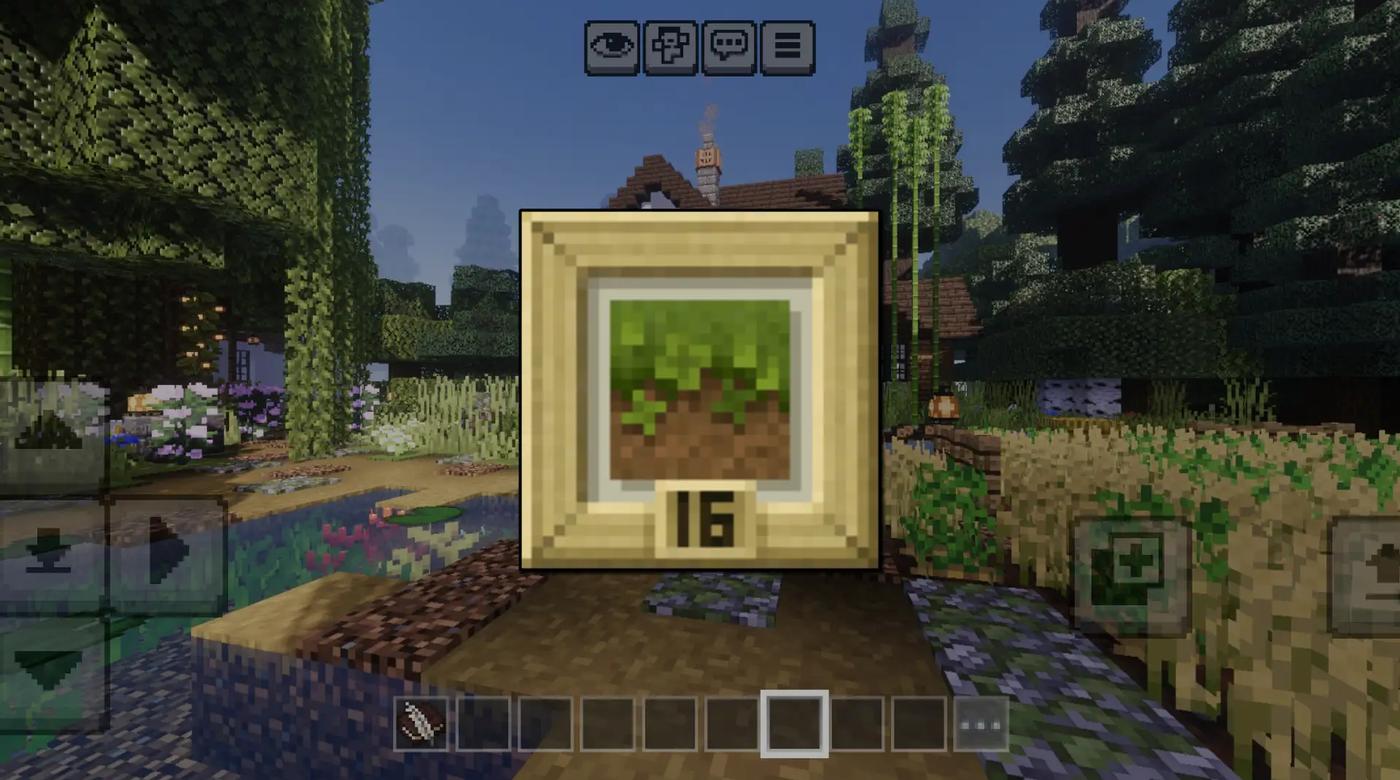
Tired of the same old vanilla look? It’s time to transform your massive open world into a cozy, artistic masterpiece. Mizuno’s 16 Craft Texture Pack brings a warm, rustic, and peaceful vibe to your gameplay.
Best of all, it now fully supports The Wild Update content, ensuring your mangrove swamps and ancient cities look just as beautiful as the rest of your world!
Why Choose Mizuno’s 16 Craft?
- Fully Custom Textures: A complete overhaul for blocks, tools, mobs, and items.
- Cute Textured Villagers: Redesigned villagers that make every village feel like a fairy tale town.
- Fantasy Aesthetic: Expertly crafted textures that give off a cozy, high-quality fantasy RPG vibe.
- Original Art: Created with love and precision by Mizuno.
How to Install on Minecraft Bedrock (Android)
To get started, make sure you have the ZArchiver app installed from the Play Store.
Method 1: Direct Open (The Fastest Way)
- Download the Mizuno’s 16 Craft file (usually ends in .mcpack).
- Open ZArchiver and locate the downloaded file.
- Tap the file and select the arrow icon next to "Open" or select "Open with Minecraft."
- Minecraft will launch automatically and import the pack.
- Go to Settings > Global Resources > My Packs, click on Mizuno's, and hit Activate.
Method 2: Manual Installation (The "Data" Folder Way)
If the direct method doesn't work or your file is a .zip, follow these steps:
- Extract the texture pack folder using ZArchiver.
- Copy the extracted folder.
- Navigate to the following path: Android > data > com.mojang.minecraftpe > files > games > com.mojang > resource_packs
Android > data > com.mojang.minecraftpe > files > games > com.mojang > resource_packs
- Paste the folder inside resource_packs.
- Open Minecraft, go to Settings > Global Resources, and activate it.
Note: On newer Android versions, you might need to give ZArchiver special permission to access the Android/data folder.